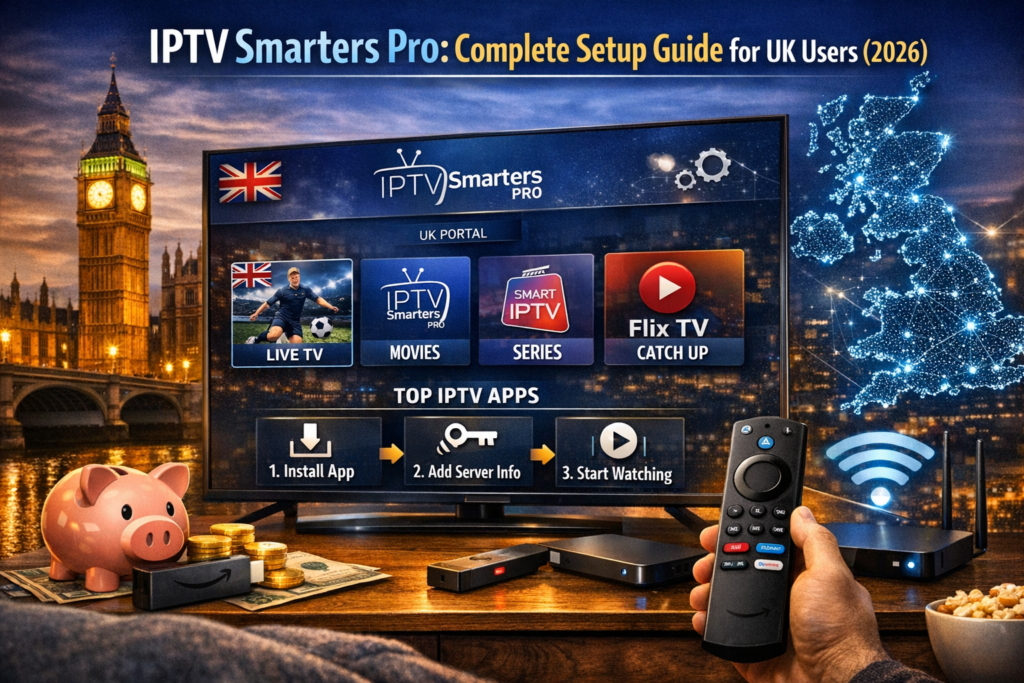
IPTV Smarters Pro is the most popular IPTV player app in the world — and it’s completely free. Whether you’re on Amazon Firestick, Samsung Smart TV, Android, iPhone, or Windows PC, this guide covers every device step by step.
By the end of this article, you’ll have Smarters Pro installed, connected to your IPTV UK subscription, and streaming 20,000+ live channels.
What Is IPTV Smarters Pro?
IPTV Smarters Pro is a free IPTV player application that lets you watch live TV, movies, and series from your IPTV subscription. It doesn’t provide any channels itself — it’s simply the app you use to access the content your IPTV provider gives you.
Think of it like this: your IPTV subscription is the key, and Smarters Pro is the door. You need both.
The app supports two connection methods: Xtream Codes API (username, password, server URL) and M3U playlist URLs. Most IPTV providers, including IPTV UK, provide Xtream Codes credentials — it’s the easiest and most reliable method.
What You Need Before Starting
Before installing, make sure you have:
Your IPTV credentials — username, password, and server URL. You receive these within 5-10 minutes after purchasing an IPTV UK plan. Don’t have one yet? Request a free 30-minute trial.
A compatible device — Smarters Pro works on virtually everything: Amazon Firestick, Android phones and tablets, Android TV boxes, Samsung and LG Smart TVs, iPhones and iPads, and Windows PCs.
A stable internet connection — 10 Mbps minimum for HD, 25 Mbps recommended for 4K content.
Setup on Amazon Firestick
Smarters Pro is available directly in the Amazon Appstore, making installation simple:
1. On your Firestick home screen, go to the Search icon
2. Type “Smarters Pro”
3. Select the app and click Download / Get
4. Once installed, open the app
5. Select “Login with Xtream Codes API”
6. Enter any name for your playlist (e.g., “IPTV UK”)
7. Enter your Username, Password, and Server URL
8. Tap “Add User”
9. Your channels will load — start watching
If the app doesn’t appear in the Appstore, you can sideload it using the Downloader app. Full sideloading instructions are in our installation guide.

Setup on Samsung or LG Smart TV
1. Open your TV’s app store (Samsung: Smart Hub / LG: LG Content Store)
2. Search for “IPTV Smarters”
3. Download and install the app
4. Open it and select “Login with Xtream Codes API”
5. Use your remote to enter your credentials
6. Tap “Add User” and wait for channels to load
If Smarters isn’t available on your TV’s store, consider using IBO Player instead — it’s the best alternative for Smart TVs.
Setup on Android Phone or Tablet
1. Open the Google Play Store
2. Search for “Smarters Pro”
3. Install the app
4. Open it and choose “Login with Xtream Codes API”
5. Enter your credentials and tap “Add User”
6. Your channel list loads instantly
The Android version also supports picture-in-picture mode, so you can watch TV while using other apps.
Setup on iPhone or iPad
1. Open the Apple App Store
2. Search for “IPTV Smarters Player” (the iOS version has a slightly different name)
3. Download and install
4. Open the app and select “Xtream Codes API”
5. Enter your credentials
6. Start streaming
Note: On iOS, the free version may have some limitations. If you prefer a fully-featured iOS experience, GSE Smart IPTV is an excellent alternative.
Setup on Windows PC or Mac
1. Visit the official Smarters Pro website and download the Windows version
2. Install the application
3. Open it and select “Xtream Codes API”
4. Enter your credentials
5. Your channels will load in the app
For Mac users, you can alternatively use VLC Media Player with your M3U playlist URL — it’s free and works perfectly. See our VLC setup guide.
Smarters Pro Features You Should Know
Once you’re connected, explore these features:
Live TV — Browse channels by category (UK, Sports, International, Kids, etc.). Channel switching is fast and smooth.
Movies — Access the full on-demand movie library. Browse by genre, year, or search by title.
Series — Complete TV series with seasons and episodes, organised like Netflix.
Catch-Up — Watch programmes that already aired (if supported by your IPTV provider).
Favourites — Long-press any channel to add it to your favourites list for quick access.
EPG (TV Guide) — See what’s currently playing and what’s coming up next on each channel.
Multi-Screen — Watch multiple channels simultaneously (useful for sports fans).
Common Problems and Fixes
“Unable to login” error — Double-check your server URL, username, and password. Make sure there are no extra spaces. The server URL must include the port number (e.g., http://server.com:8080).
Channels not loading — Try closing and reopening the app. If it persists, clear the app cache (Settings → Apps → Smarters Pro → Clear Cache).
Buffering during playback — Switch from Wi-Fi to a wired Ethernet connection if possible. Also try changing the video player within Smarters Pro settings from the default to VLC or ExoPlayer.
App crashing — Make sure you have the latest version installed. Uninstall and reinstall if needed.
Still having issues? Contact our 24/7 WhatsApp support — we’ll resolve it within minutes.
Smarters Pro vs Other IPTV Apps
Smarters Pro is the best choice if you want a free, easy-to-use app that works on every device. However, if you want more advanced features, consider these alternatives:
TiviMate — Better EPG, recording, and interface on Firestick/Android TV. See our TiviMate setup guide.
IBO Player — Best for Samsung and LG Smart TVs.
XCIPTV — Lightweight and ad-free alternative.
All of these apps work perfectly with your IPTV UK subscription. For setup guides on all 12 compatible apps, visit our complete installation guide.