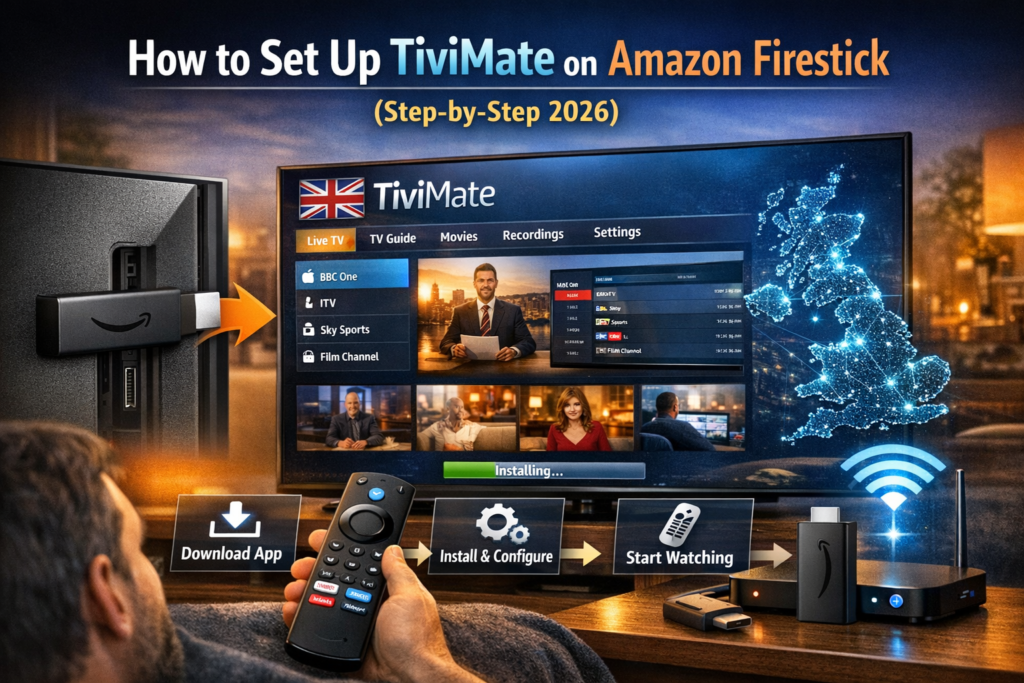
TiviMate is widely considered the best IPTV UK player for Amazon Firestick and Android TV devices. It offers a clean, modern interface that feels like a traditional cable TV guide, with features like EPG (Electronic Programme Guide), catch-up TV, favourites, recording, and multi-view.
This guide walks you through installing TiviMate on your Amazon Firestick and connecting it to your IPTV UK subscription.
What You Need Before Starting
Before you begin, make sure you have:
An Amazon Firestick — any model works (Firestick Lite, Firestick 4K, Firestick 4K Max, Fire TV Cube).
An IPTV subscription — you’ll need your username, password, and server URL. If you don’t have one yet, choose a plan here or request a free trial.
A stable internet connection — 25 Mbps or higher is recommended for 4K quality.
Step 1: Enable Apps From Unknown Sources
TiviMate isn’t available in the Amazon Appstore, so you’ll need to allow sideloading:
1. Go to Settings on your Firestick
2. Select My Fire TV (or Device)
3. Select Developer Options
4. Turn on Apps from Unknown Sources (or Install Unknown Apps)
If you don’t see Developer Options, go to Settings → My Fire TV → About → click on the Firestick name 7 times rapidly. Developer Options will then appear.

Step 2: Install the Downloader App
1. Go to the Search icon on your Firestick home screen
2. Type “Downloader”
3. Install the Downloader app (orange icon by AFTVnews)
4. Open it and grant any permissions it requests
Step 3: Download and Install TiviMate
1. Open the Downloader app
2. In the URL field, type: tivimate.com
3. The TiviMate website will load — tap the Download button for the latest APK
4. The file will download — when prompted, tap Install
5. Once installed, tap Open (or find TiviMate in your Apps list)
Step 4: Add Your IPTV UK Playlist
1. Open TiviMate — it will ask you to add a playlist
2. Select “Xtream Codes”
3. Enter your IPTV UK credentials:
– Server URL: the URL provided with your subscription
– Username: your IPTV username
– Password: your IPTV password
4. Tap Next
5. TiviMate will connect and load your channel list and EPG data
This usually takes 30 seconds to 2 minutes depending on your connection speed.
Step 5: Start Watching
Your channels are now loaded. You can:
– Browse by category — UK, Sports, Movies, International, Kids, etc.
– Use the EPG guide — see what’s on now and coming up next
– Add favourites — create a list of your most-watched channels
– Use catch-up — watch programmes that already aired
– Record live TV — save shows to watch later (Premium feature)
TiviMate Free vs Premium
The free version of TiviMate works well for basic viewing. However, the Premium version (approximately £1/month or a one-time lifetime purchase) unlocks:
– Multiple playlists
– Recording functionality
– Catch-up TV
– Channel sorting and customisation
– Scheduled recordings
For the best experience with your IPTV UK subscription, we recommend TiviMate Premium.
Troubleshooting Common Issues
Channels not loading? Double-check your server URL, username, and password. Even a single extra space can cause errors.
Buffering? Switch from Wi-Fi to a wired Ethernet connection using an adapter. Also try clearing the TiviMate cache in Settings → Applications.
EPG not showing? Go to TiviMate Settings → EPG → Update. Allow a few minutes for the guide data to load.
Still having issues? Contact our 24/7 WhatsApp support — we’ll walk you through it.
For setup guides on other apps and devices, visit our complete IPTV installation guide covering 12 different IPTV players.